Managing environments in Microsoft Dynamics 365 Business Central is critical for ensuring operational efficiency, data security, and system scalability. This blog outlines best practices, workflows, and tips for effective environment management in Business Central.
What is Business Central Environments?
Environments are isolated instances of Business Central, each with its own data, extensions, and configuration settings. They are used for various purposes:
– Production: Live business transactions
– Sandbox: Testing, development, training
– Preview: Evaluating new features before release
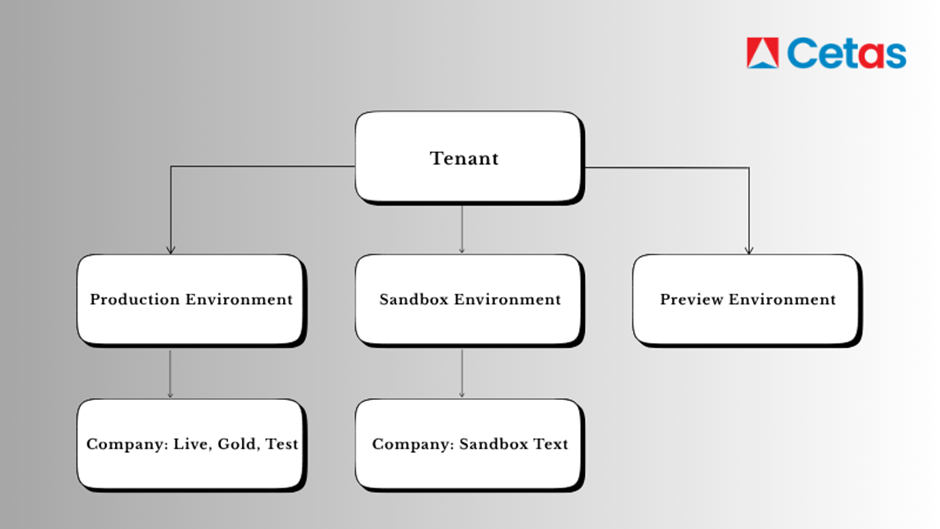
Production Environment:
Real business data is stored in a production environment. Although you can have a “test” firm in the production environment, it is advised that most user testing be done in the sandbox. This could involve evaluating the quality of moved data, testing new development work, or upgrading to newer versions.
Sandbox Environment:
The purpose of sandbox environments differs from that of production settings. The fact that production environments are regularly backed up, but sandbox environments are not contributing to this. This implies that you must either export the data using Rapid start or remove the Sandbox environment and build a new one whenever there is a problem.
Additionally, sandbox environments in Azure don’t operate in the same performance tier, which results in lower performance quality.
For both Premium and Essential subscription types, Business Central users have access to one Production and three Sandbox environments.
Managing Business Central Environments in the Admin Center
You need to be a system administrator to manage environments in Business Central. The Admin Center activity won’t be visible to you if you aren’t configured as a system administrator.
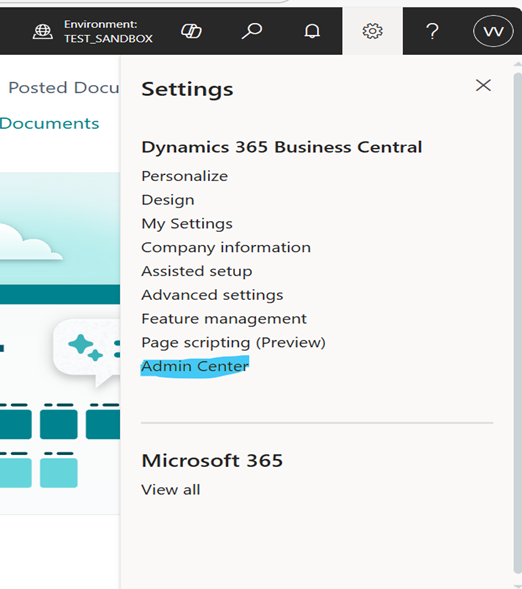
The relevant environments can be managed by selecting the Admin Center option. A system administrator has numerous options for managing Business Central environments through the Admin Center. Let’s see what the system administrator is capable of.
How to Create a Business Central Environment (Step-by-Step)
To create a Business Central environment, follow these steps:
1. Access the Business Central administration center and navigate to the “Environments” section.
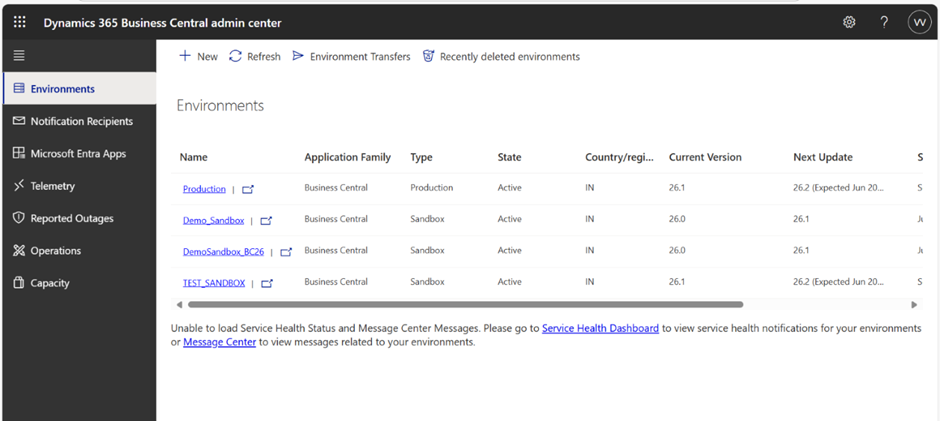
2. Click “New” to start the environment creation process.

3. Enter a name for the new environment.
4. Select the environment type (Production or Sandbox).
5. Choose the region where the environment will be hosted.
6. Click “Create” to finalize the setup.
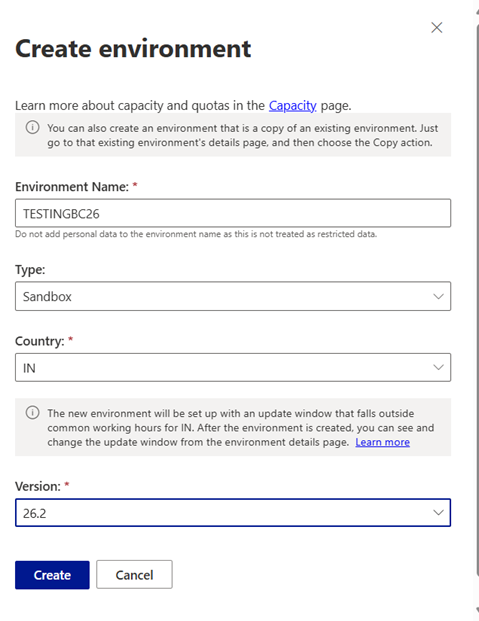
Setting up the sandbox environment will take some time. Once the environment is ready, the status will display as Active.
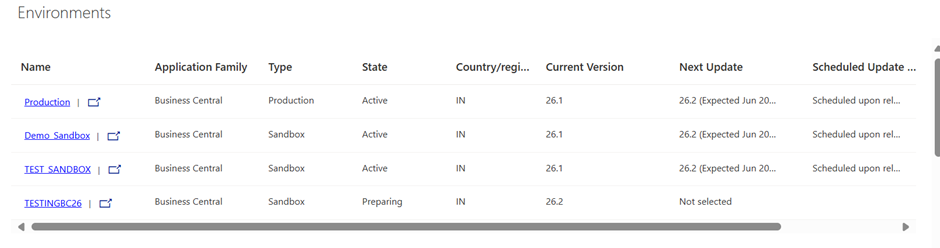
Now the sandbox environment is ready and you can visit the environment:
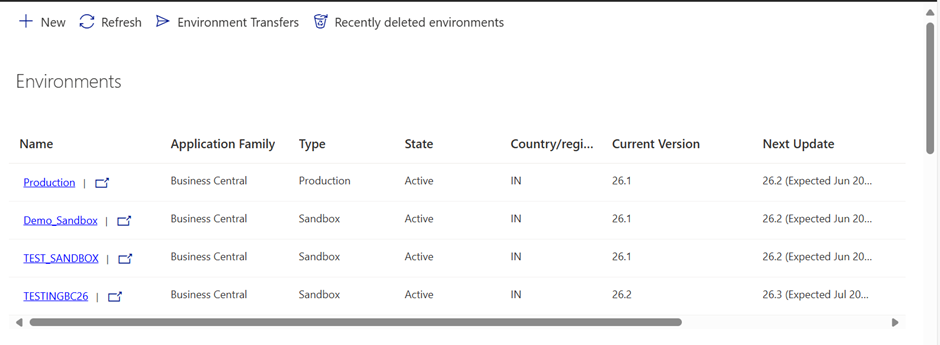
Business Central Environment Limitations and Quotas
When creating a new Business Central environment, there are several limitations to consider:
- Quota Restrictions: Each tenant has a limit on the number of production and sandbox environments based on their subscription.
- Storage Capacity: The total database storage across environments must not exceed 80 GB unless additional capacity is purchased.
- Power Platform Linking: A Business Central environment can only link to one Power Platform environment at a time, and some lifecycle operations may be restricted.
- Localization Constraints: Multiple production environments can be created within the same tenant, but each must follow localization rules.
How to Copy a Business Central Environment
To copy a Business Central environment, follow these steps:
1. Open the Business Central administration center and go to the “Environments” section.
2. Select the environment you want to copy.
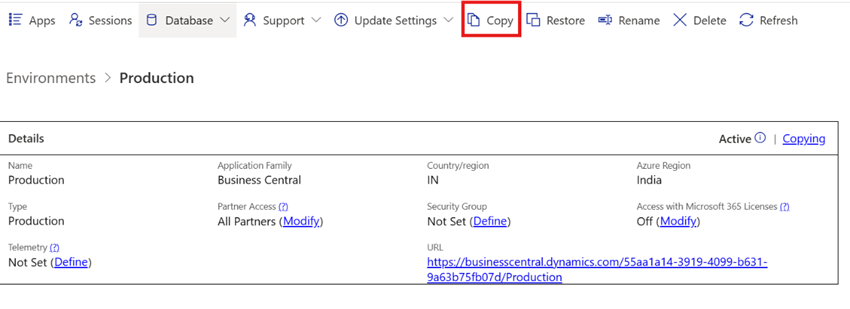
3. Click the “Copy” action on the Environment Details page.
4. Specify the type of environment (Production or Sandbox) for the new copy.
5. Enter a name for the new environment.
6. Click “Copy” to start the copy process.
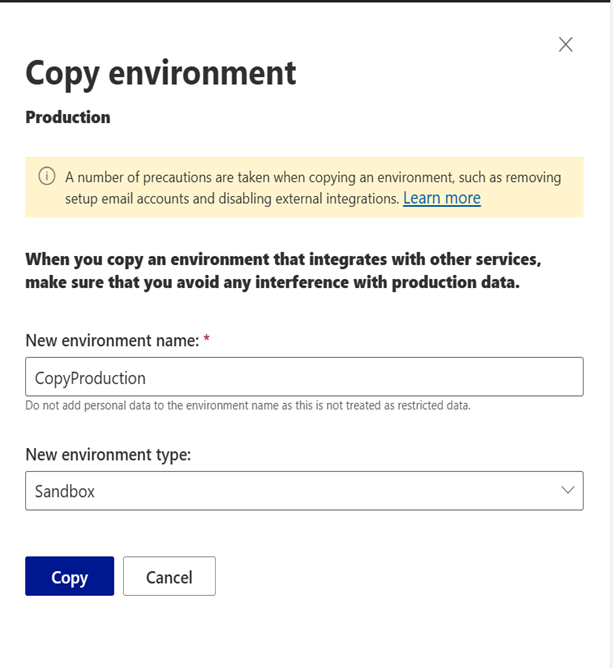
Setting up the copy environment will take some time. Once the environment is ready, the status will display as Active.
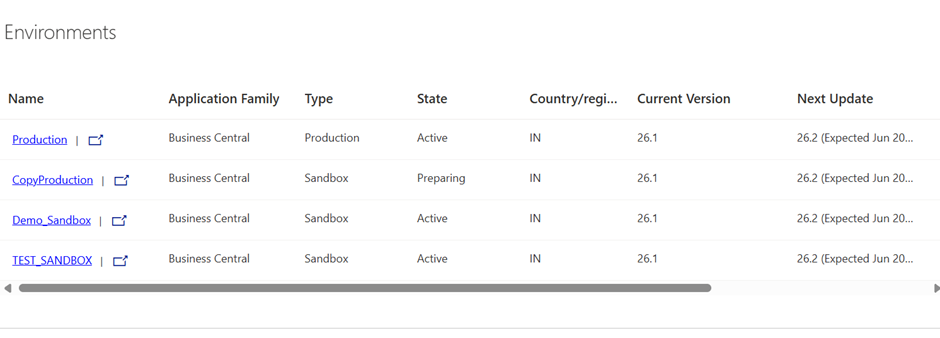
What Happens When You Copy a Business Central Environment
The copied environment will have the same application version as the original and will include all per-tenant and AppSource extensions. However, if the original environment was linked to a Power Platform environment, the new copy will not retain that link.
When an environment is created as a copy of another environment, a number of precautions are taken for that copy:
- Job Queue Tasks Are Stopped: Scheduled tasks are automatically halted. You can review and restart necessary tasks in the Scheduled Tasks page.
- Integration Settings Are Cleared: Any base application integration settings are removed to prevent conflicts.
- Irreversible Features Stay Enabled: If certain features were permanently enabled in the original environment, they remain active in the copied version.
Best Practices for Business Central Environment Management
- Regularly refresh sandbox environments to align with production data.
- Always test new extensions or upgrades in sandbox before deploying live.
- Set clear naming conventions for each environment.
- Periodically monitor storage and performance from Admin Center.
- Establish an environment governance policy to control access and avoid clutter.
FAQs on Business Central Environments
Q1. How many environments can I create in Business Central?
Each tenant can have 1 production and up to 3 sandboxes, depending on your subscription type.
Q2. How do I restore a Business Central environment?
Go to the Admin Center, choose the environment, and select Restore to roll back to a previous backup (for production only).
Q3. Can I copy a sandbox to production in Business Central?
No, copying from sandbox to production is restricted for safety reasons. You can copy from production to a sandbox environment.
Conclusion
Effective environment management in Business Central empowers organizations to maintain stability, enhance security, and scale confidently. With the right tools, policies, and automation, administrators can ensure each environment serves its purpose without disrupting business continuity.
Need help setting up an automated environment governance strategy? Contact our experts at sales@cetastech.com
Credit: Ganeshan M, our Lead Business Central Consultant