Migrating a Microsoft Dynamics 365 Business Central (BC) Cloud (SaaS) environment between Microsoft Entra tenants may sound complex, but it’s easier than you think. Whether you’re merging businesses, reorganizing departments, or transferring a demo setup, Microsoft now makes tenant-to-tenant migration in Business Central Cloud seamless, secure, and fully auditable.
In this guide, we’ll walk you through how to migrate Business Central Cloud environments to another tenant — step by step — so you can manage transfers confidently with zero data loss or downtime.
Why You Might Need to Migrate Business Central Cloud Environments
Businesses often encounter scenarios where moving Business Central Cloud environments between tenants becomes essential. Common use cases include:
- Mergers & Acquisitions: Consolidating operations under a new parent entity or consolidating various Entra tenants into one.
- Restructuring: Separating divisions or establishing new independent entities.
- Demo or Partner Needs: When a partner organization has to migrate a pre-configured demo environment to a potential customer.
- Licensing Adjustments: Allocating resources between multiple tenants for better compliance.
Understanding how Business Central Cloud tenant-to-tenant migration works helps ensure a smooth transition.
Before You Migrate Business Central to a New Tenant
Before initiating the migration, make sure the following prerequisites are met:
1. Access Rights
- You must be an internal administrator for both the source and destination tenants.
- Delegated or external administrators cannot initiate or accept tenant-to-tenant migrations.
2. Destination Tenant Setup
- Have at least one paid Business Central license in the destination tenant.
- Ensure sufficient environment and storage quotas are available.
3. Environment Readiness
- Ensure that the environment is not linked to a Power Platform environment.
- Note that the localization, Azure region, and environment type (Production or Sandbox) will remain the same after the transfer.
Step-by-Step Guide: How to Migrate Business Central Cloud Environments Between Tenants
Here’s a step-by-step process to assist you in accomplishing the transfer seamlessly.
Step 1: Initiate the Transfer in the Source Tenant
1. Login to Admin Center: Go to the Business Central Admin Center of the source tenant.
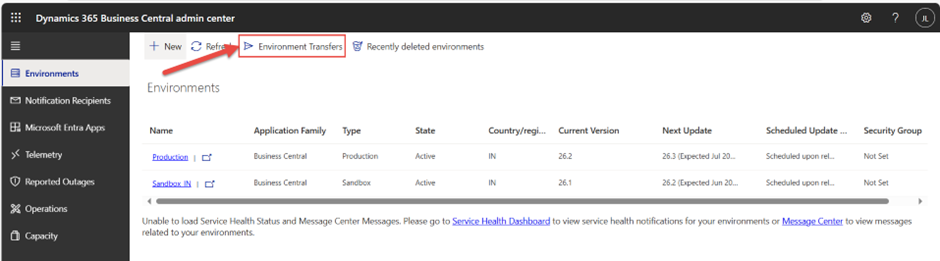
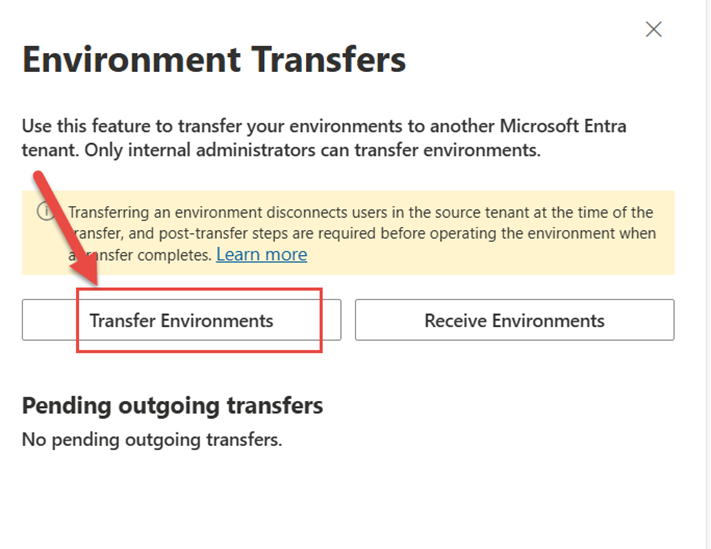
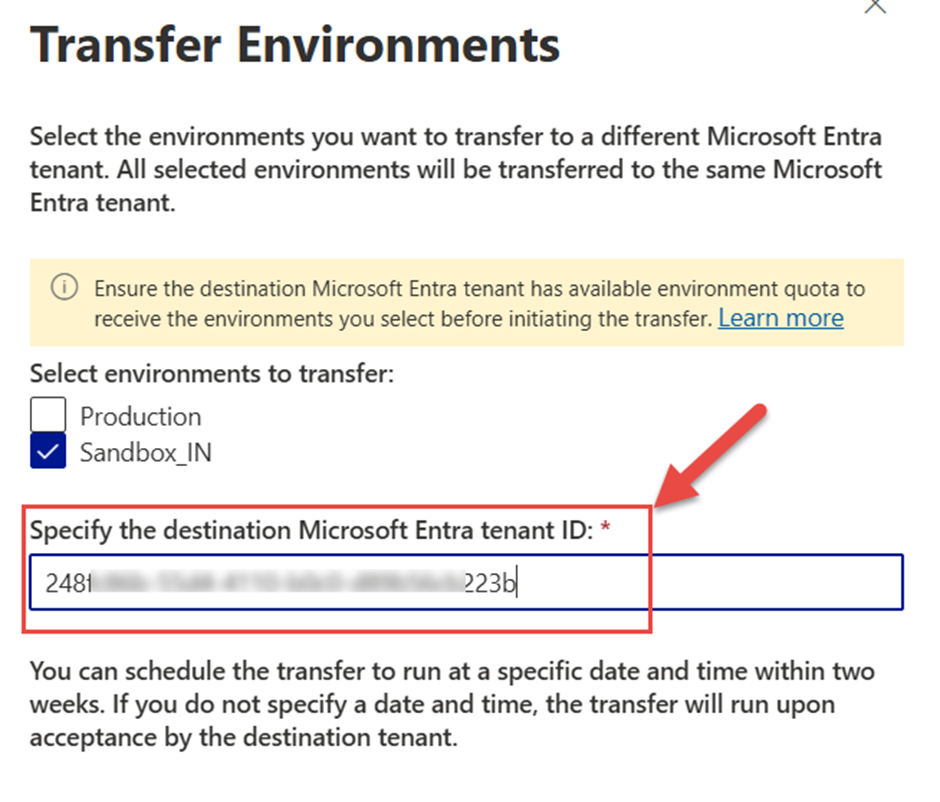
2. Choose the Environment: Navigate to Environments > Transfer Environments and choose the environment you wish to transfer.
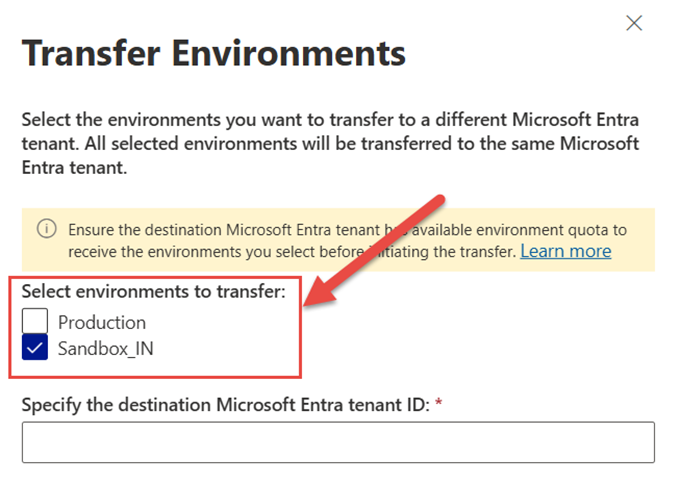
3. Enter Destination Details: Enter the destination tenant’s Entra ID.
4. Define a Schedule: Choose a transfer date and time that has the least disruption.
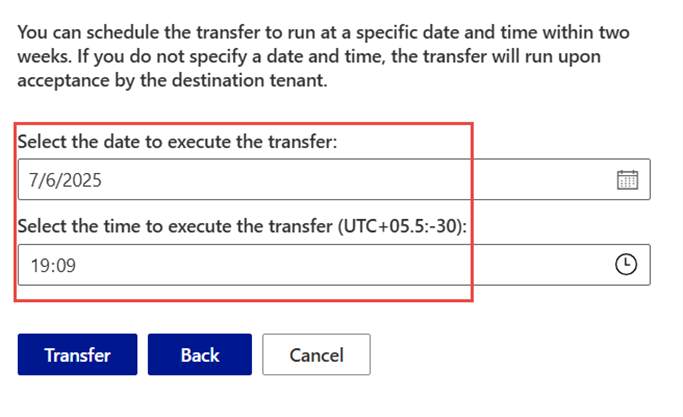
5. Confirm Transfer: Review the details and confirm.
Note: The destination tenant will have an 8-hour window in which to accept the transfer request. After creating a transfer on the source tenant you can review the status on the Pending outgoing transfers list.
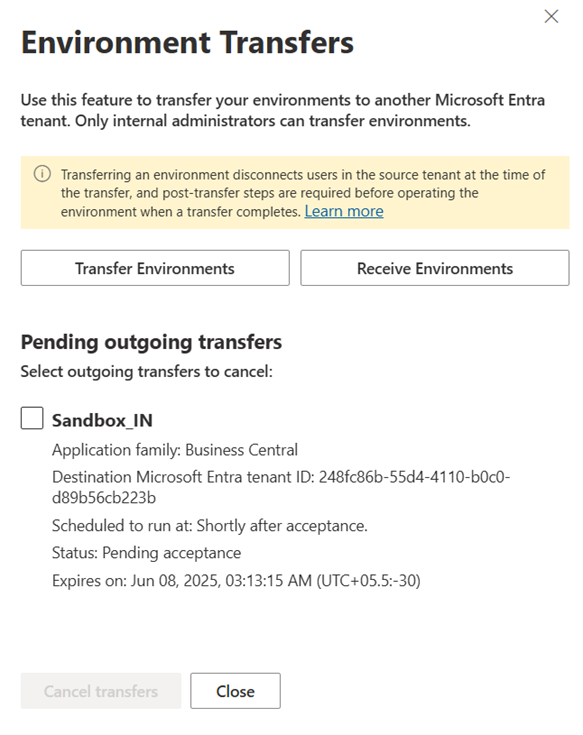
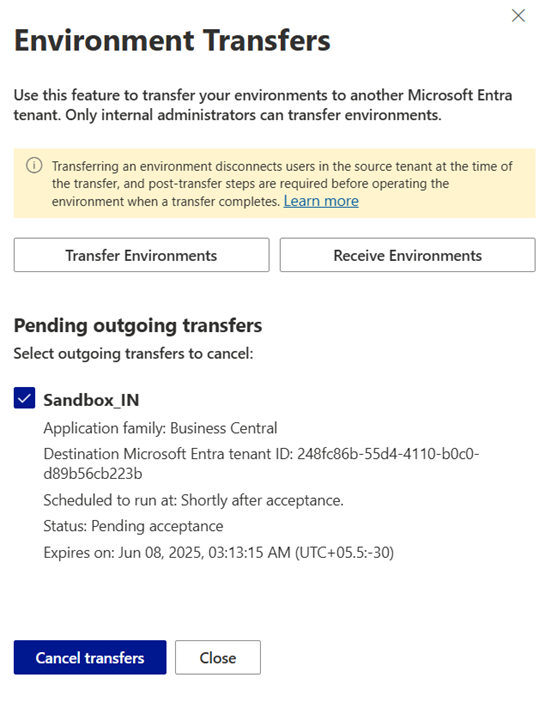
If you wish to cancel the transfer, now you can select the environment and do the Cancel Transfers.
Step 2: Accept the Transfer in the Destination Tenant
1. Log in to the Admin Center of the destination tenant.
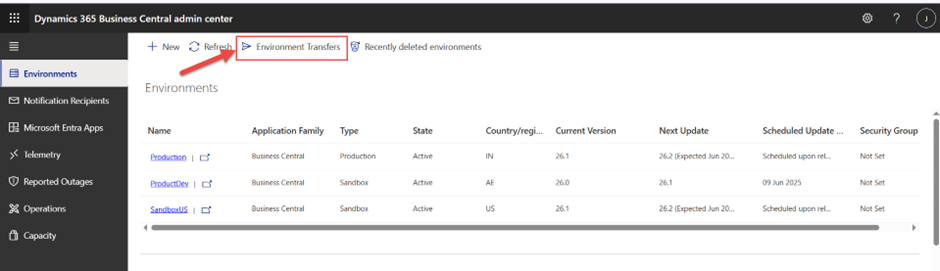
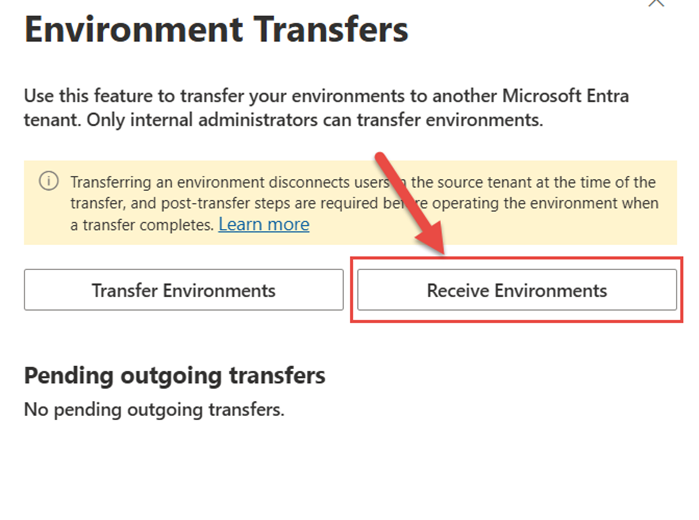
2. Go to Environments -> Transfer Environments and choose Receive Environments.
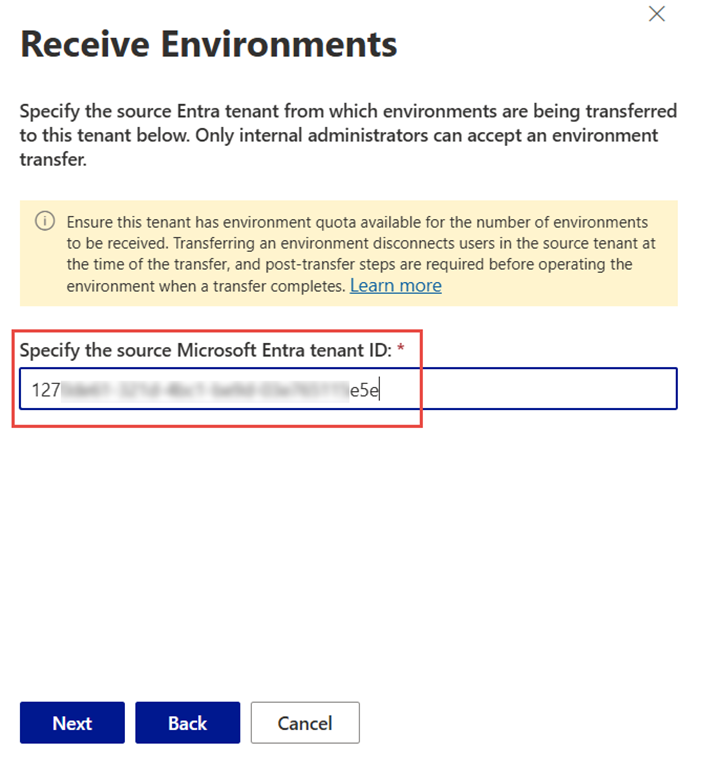
3. Specify the Entra tenant ID of the source tenant you’re accepting an environment transfer from
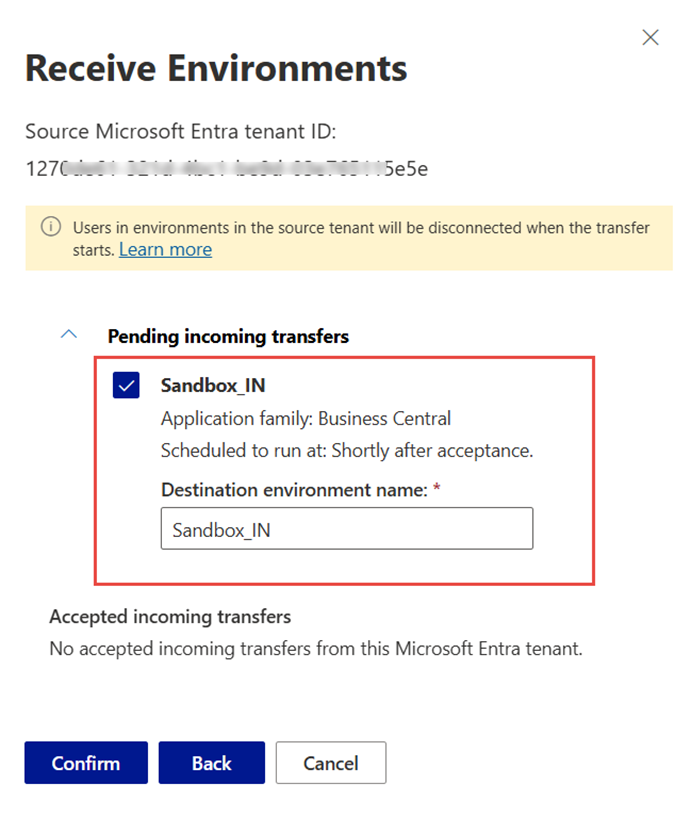
4. Select the environment which you want to accept a transfer and confirm. Rename the environment if there is a conflict with existing environment name.
5. Accept the transfer. The environment will now be transferred to the destination tenant based on the transfer time.
Step 3: Perform Post-Migration Actions
Once the transfer completes:
- You need to recreate and assign roles to users in the new tenant. Existing User personalization will be lost.
- Reconfigure some add-ins, external applications and settings after migration. Such as Power Platform, Outlook, Excel, Power BI, Dataverse and other integrations.
- All external Integrations may have to be reconfigured to reflect the new tenant ID.
Monitoring & Auditing the Environment Migration
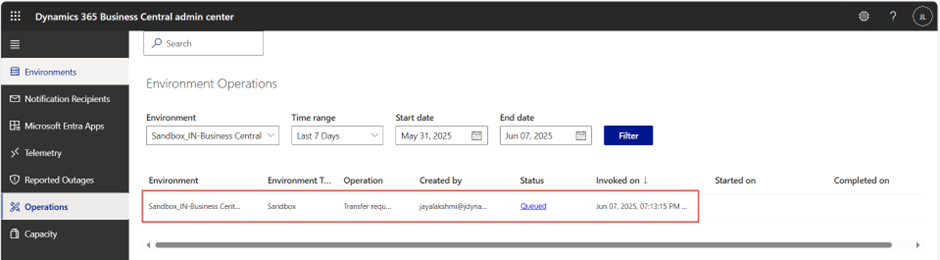
When you migrate Business Central Cloud environments, Microsoft automatically creates auditable logs:
- Two operations appear on the Operations Page in the Admin Center.
- Telemetry signals are sent to the environment’s Application Insights resource.
This ensures compliance, traceability, and full auditability.
Important Things to Keep in Mind During Tenant-to-Tenant Migration
- Transfers usually involve a short period of time, typically around 30 minutes.
- Always double-check that the destination tenant has enough storage and environment quotas to handle the incoming environment.
- All environment data will remain intact during the transfer.
- The localization, Azure region, and type of the environment (Production or Sandbox) will remain the same and can’t be changed during this operation.
- Environments linked to power platform environment cannot be transferred. Unlink the Business Central environment before creating a transfer.
FAQs: Business Central Tenant-to-Tenant Migration
Q1. Can I move my Business Central sandbox environment to another tenant?
Yes. Both production and sandbox environments can be migrated if they’re not connected to Power Platform.
Q2. How long does a Business Central environment transfer take?
Usually around 30 minutes, depending on environment size and region.
Q3. Will user data or roles be lost after migration?
Data remains intact, but user roles and personalizations must be recreated in the new tenant.
Q4. Can I change the environment’s region during migration?
No. Azure region and localization remain fixed to ensure data residency compliance.
Final Thoughts
So, there you have it! The ability to easily move your Business Central environments between Microsoft Entra tenants is a real game-changer for businesses dealing with organizational shifts. Whether you’re combining forces during a merger, handing over a demo to a potential customer, or simply fine-tuning your operations, this process promises a smooth and secure journey.
By following these straightforward steps, you can truly minimize those frustrating downtimes, keep all your precious data safe, and ensure your business keeps humming along without missing a beat. It’s all about empowering your organization to adapt quickly and confidently to whatever the future holds!
Planning to move your Business Central environment to a new tenant?
Let our experts handle the migration for you securely, seamlessly, and without data loss. Contact us today to get expert assistance with your Business Central tenant-to-tenant migration.
Credit: Jayalakshmi Selvaraj, Our Business Central Technical Lead.