In our previous blog, How MCP Is Revolutionizing Business Central with AI-Driven Automation, we explored what the Model Context Protocol (MCP) is and how it is transforming the way Microsoft Dynamics 365 Business Central interacts with AI-driven experiences. If you haven’t read it yet, we recommend reviewing it to gain a solid understanding of the fundamentals and the value MCP brings to modern ERP systems.
In this blog, we take the next step, focusing on how consultants and developers can get started with implementing MCP in Business Central 27. Below are step by step guide to help you get started with implementing an MCP in Business Central 27.
Step 1: Creating an MCP in Business Central 27
The first step is to configure a new MCP directly within Business Central.
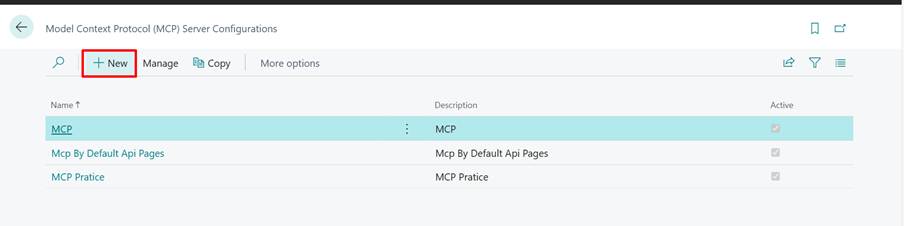
In this example, we are creating an MCP for Customers, where the required customer data needs to be exposed. To make the data available for MCP processing, either you can use default API Page or create your ouwn API Page.
In this scenario, a custom API Page is created for the Customer table. Once the API Page is ready, its Object ID is referenced while configuring the new MCP. Depending on the functional needs, we can enable permissions such as Allow Read, Allow Create, or Allow Delete to control how the model interacts with the data.
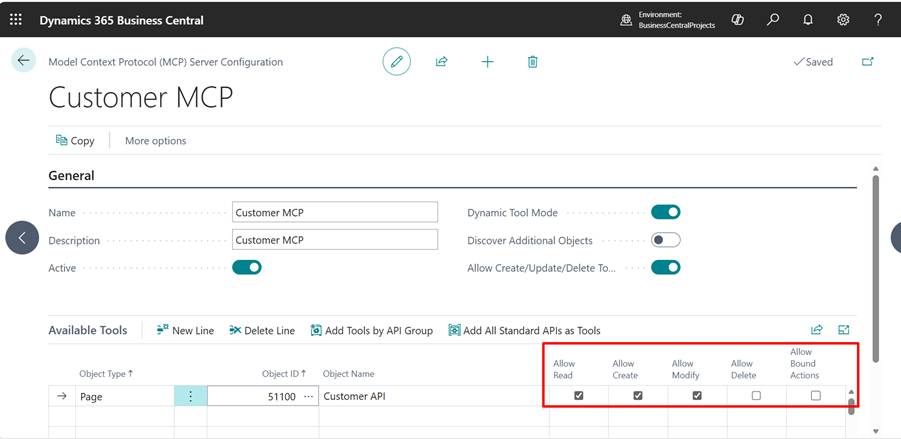
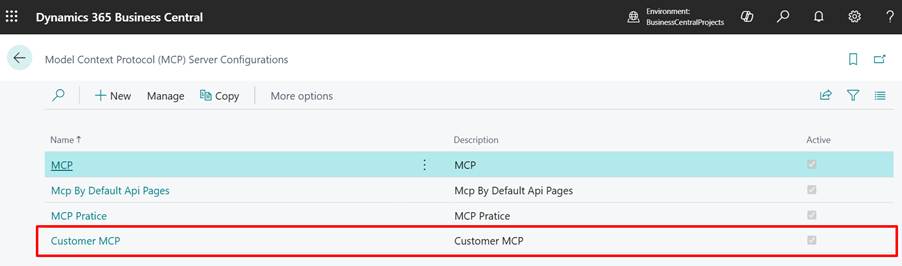
With this setup complete, the Customer MCP is now successfully created and ready to use.
Step 2: Creating a Copilot Studio Agent
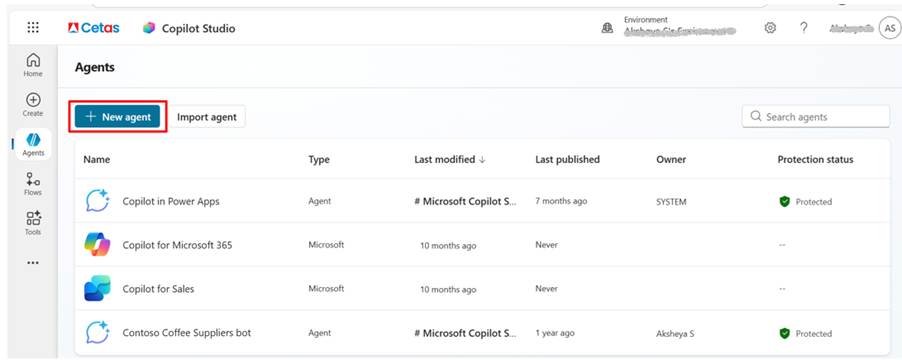
Next, navigate to Copilot Studio Agent and proceed to create a new Agent.
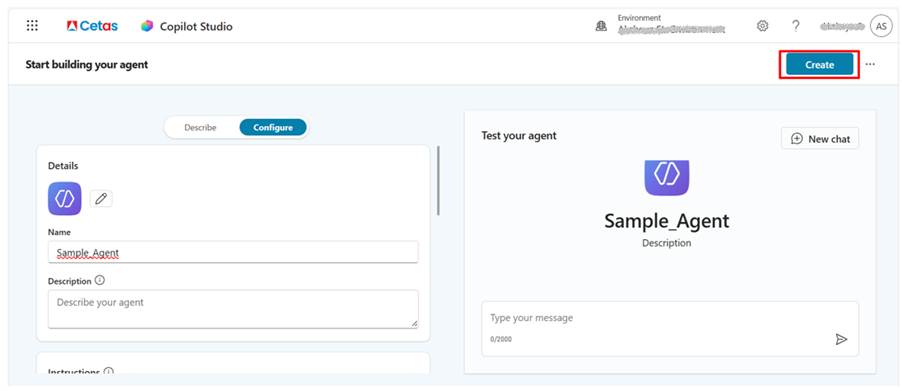
Give the Agent Name and Description.
Step 3: Configuring MCP in Copilot Studio
Go to tools to configure the MCP.
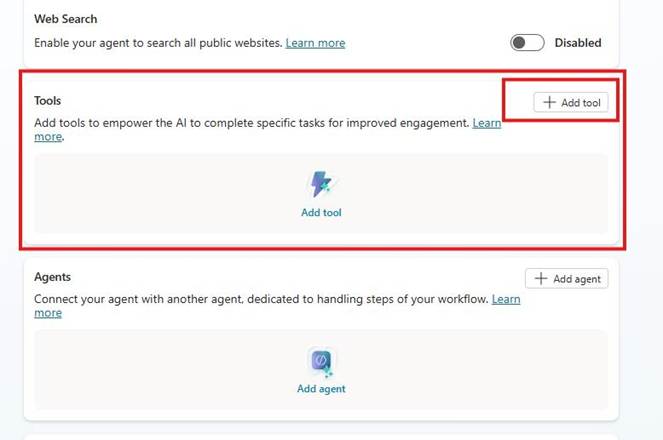
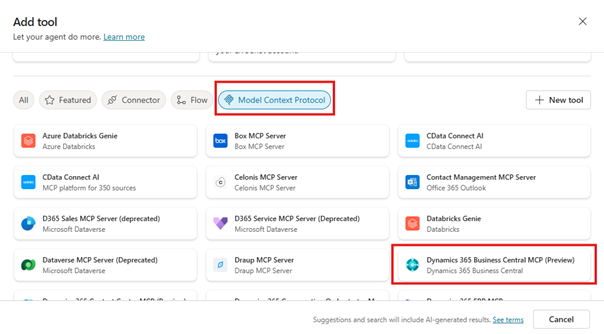
Once you click Add Tool, choose Model Context Protocol and search for Dynamics 365 Business Central and select it.
Step 4: Connecting the Agent to Business Central
Configure the agent by providing the required environment credentials that the agent will connect to and access.
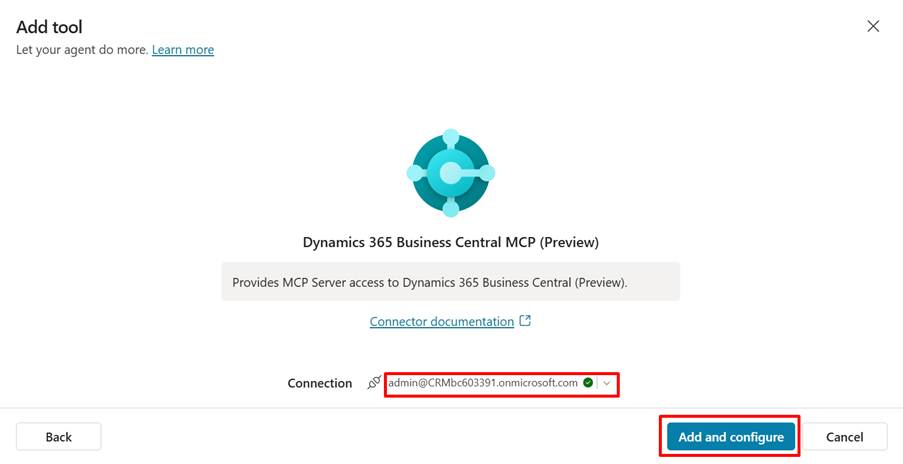
After completing the configuration, specify the Environment Name, Company Name, and the MCP Server Name in the Inputs. In this example, we select the Customer MCP.
And that’s it! Once the Copilot Agent configuration is complete, you can now seamlessly access and interact with the customer data through the agent.
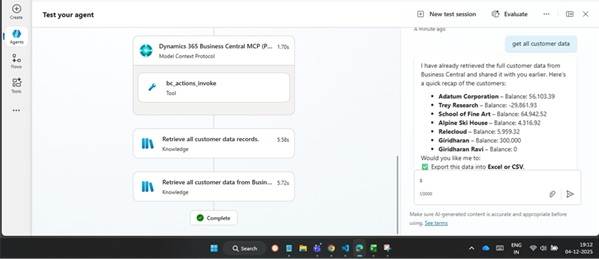
The Impact of Model Context Protocol (MCP) on Microsoft Dynamics 365 Business Central
The introduction of MCP marks a major shift in how organisations will interact with Business Central.
By enabling AI to understand business context, take action, and work across connected systems, MCP is redefining ERP intelligence. As these capabilities evolve, Business Central will become more proactive, predictive, and automated, empowering organisations to make faster decisions, improve efficiency, and focus on strategic growth instead of routine tasks.
At Cetas, we see MCP as a foundational capability that will shape how AI-enabled Business Central solutions are designed and implemented.
Next Steps: AI-Driven Automation with MCP in Business Central
If you’re interested in leveraging MCP for AI-driven automation in Business Central, stay tuned. We’ll continue sharing practical implementation guidance, real-world examples, and technical insights to help consultants and developers adopt MCP effectively.
The future of Business Central is intelligent, connected, and powered by MCP and this journey is just getting started.
Planning to implement MCP in Business Central 27?
Reach out to Cetas, your trusted Microsoft Dynamics 365 Business Central partner, to discuss MCP readiness, architecture, and AI-enabled automation strategies tailored to your Business Central environment.
Credit: Aksheya Suresh, Our Business Central ERP Consultant and Giridharan Ravi, Our ERP Technical Consultant Trainee.